 RoboLab's Inventor Level
Introduction to the Robolab's Inventor Level
© D. Weinberger and
D. Thiébaut

SSSP: Inventor Tutorial
Plan
Inventor 1
- Start RoboLab
- Select Programmer
- Then Inventor 1 in the Inventor Section
- While pressing the left mouse button, draw a rectangle around the six tiles in the Robolab window to select the whole program.
- Press the DELETE key to delete the selected tiles.
- Click on Help/Show Help to open up the Help Window. This window is of great use as it displays information relating to tiles as you move your mouse pointer to them.
- Using the Function palette, create the program
shown below:
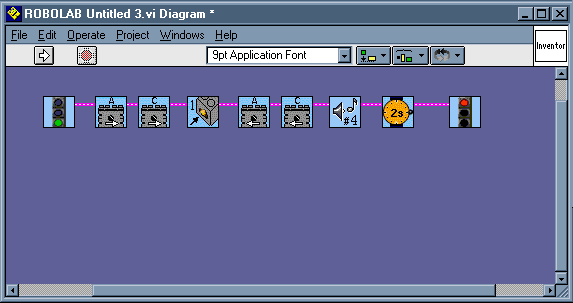
- Make sure you remember to press the Tab key to transform the cursor in wire-spool so that you can "string" the tiles together.
- Invariably, you will find that the wiring does not always go well, and you may have to use Edit/Remove Bad Wires from time to time to clean up the program.
- When the white arrow icon is full, click it to download the program to your RCX. Make sure you have a touch sensor connected to Port 1.
- Holding your RCX robot in your hands, test it to verify that it would go straight until the touch sensor senses an obstacle, and then would beep and go backward for two seconds...
| You will find out that the motors keep on turning, while the little figure in the display of the RCX stops walking. Obviously the program is over, but the motors are still turning. What do you think is the problem? Try to fix it, so that the motors stop when the program ends. |

Inventor 2
- Close all the RoboLab windows and when the main menu of Robolab levels appears, click on Inventor 2
- Create the program shown below
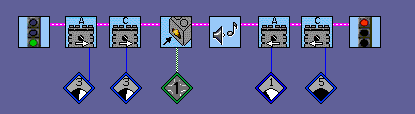
- Download and run it. Verify that it behaves as the program of the previous section. (You may want to apply the same fix to make the motors stop at the end of the program.
- Locate the black arrow in the green square. It allows
you to select a jump-to and jump-destination
tile to insert in your program. Go ahead and modify your
program so that it looks as shown below:
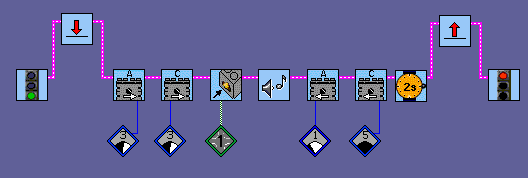
- Download and test the program while holding your robot in the air. Does it work as it should? If so, congratulations! If not, fix it!
| EXERCISE: Modify your program so that it will make your robot follow a square path on the floor. Again, you may simply test it by holding your robot in your hand and verifying that the behavior of the wheels is correct. |
Inventor 3
- Once again, close down all the Robolab windows so that you can pick Inventor 3 from the main menu.
- Click on the music palette and make it "sticky" by clicking on the push pin in the upper-left corner.
- Create a program that will play the first line of "Row Row Row your boat' (C C C D E E D E F G).
- Download it an play it.
- Create the program shown below:
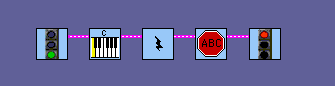
- Download it and run it.
- Now modify it as shown here:
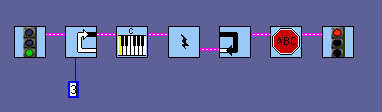
- Download it and run it.
- Press TAB until the cursor transforms into a text box (rectangle with vertical bar in the middle).
- click on the text box attached to the loop, and change 3 to some other number less then 10. Download and run the program. See how you can control the number of times some tiles must execute?
Looping
| EXERCISE: Create a program that would make your robot go around in a square path, but this time make it go around just once. In other words, your robot should go straight, turn 90 degrees, go straight, turn another 90 degrees, go straight, turn 90 degrees again, go straight, turn and stop! (Hints: use a loop!) |
© D. Weinberger and D. Thiébaut