 FTP tutorial
© D. Weinberger and
D. Thiébaut

FTP Tutorial
-
When you find a picture on a remote Web site that you like, and that you
would like to include in your Web page, you need to follow two
simple steps:
- First you right click on the picture and select the option to save it to your local disk.
- Then you transfer the file from your PC to your hermite account.
- On the PC, Start the program WS_FTP95, found in the Start/Programs/Internet Tools menu.
- Enter the following information in the Session Properties
window:
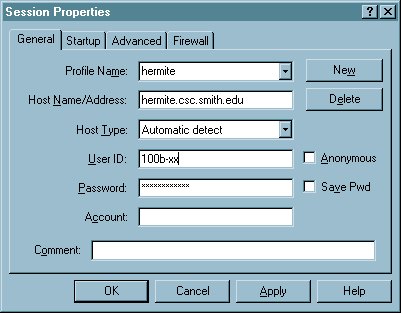
and press OK
- In the left column, click on ChgDir and enter the name of the directory where the file is located: C:\temp.
- In the right column, click on the public_html directory, to select it as the directory where your file should be saved.
- Double click on the TheBrick.jpg file name, or click on the -> arrow to start the transfer.
- Once the file is transfered, click the exit button to terminate the FTP session.
The first step is simple. Just right-click on the picture, and save it to your H: drive (sumsci account).
To transfer the file, you need to use the FTP utility (also known as Fetch on the Mac).
Here are the steps to follow. I will assume here that the picture file has already been captured and saved to the C: drive in a directory called temp. The file is called TheBrick.jpg.
All you need to do now is to make sure the file you just transfered to your Unix account is made public for browsers to be able to display them:
